
When something stops working, do you find it hard to explain what happened? Scattered notes, blurry photos and missing timestamps waste time and make repairs or warranty claims harder.
If you need to record a fault, this guide explains the key types of evidence to collect, from annotated photos and screen captures to audio recordings, error codes, communications and proof of purchase. It also covers standardised file naming, version control and how to keep a clear chain of custody. Follow the steps to build a verifiable troubleshooting log that helps technicians diagnose faults more quickly and supports warranty claims.

1. Define why the log exists and what it should cover
Make logs practical and usable. Their purpose is to support decisions such as spotting recurring faults, escalating issues to engineering, confirming fixes and training staff. To make that purpose verifiable, the log scope should clearly state what systems, severity levels and incident sources are included and what is excluded.
Be explicit about scope. For example, include high-severity production systems and customer-facing components, and exclude low-impact user errors and noisy third-party service alerts to avoid scope creep. Spell out severity thresholds so everyone understands what qualifies as high, medium or low impact.
Decide and document the exact fields each entry must contain, with a minimum level of detail for each. Make a few fields mandatory so entries are consistently useful. Suggested fields and brief descriptions:
– Reporter and role: who logged the incident and their responsibility.
– Affected system or component: where the problem was seen.
– Observable symptoms: what was actually noticed.
– Reproduction steps: how to recreate the issue, if possible.
– Environmental conditions: deployment, region, configuration or other context.
– Actions taken: immediate mitigations and who did them.
– Attachments: logs, screenshots or test results.
– Final outcome: resolution, workarounds and follow-up actions.
Provide short-entry examples for each field so records remain consistent, searchable and speed up triage and root cause analysis. For instance:
Reporter: Network engineer
Symptom: intermittent packet loss
Reproduction: sustained load test reproduces packet drops
Affected system: core router cluster
Environment: production, region A, firmware v2.3
Actions taken: restarted interface, opened ticket with vendor
Attachments: pcap and interface counters
Final outcome: vendor patch applied, monitoring shows stable behaviour
Keeping entries structured and clear makes logs a reliable single source of truth for faster decisions and better learning across the team.
Keeping records and evidence organised need not be a headache. A clear plan that lays out responsibilities, data rules and success measures reduces duplicate investigations and helps preserve the chain of custody. Use the following practical approach.
Map roles, permissions and the entry lifecycle
– Make it obvious who can create, edit, close and approve records. Spell out who performs reviews and who is responsible for escalations when issues remain unresolved.
– Define the lifecycle stages for an entry, from creation to closure and archival, and note who owns each handover point. Clear ownership reduces confusion and repeated work.
Set retention, privacy and compliance rules by data type and sensitivity
– For each type of record, decide how long it stays active and when it should be archived, anonymised or redacted.
– Specify which attachments are not allowed and which file types are acceptable.
– Ensure audit trails are preserved so you can see what changed and who made the change, protecting the organisation and the integrity of evidence.
Pick two to three measurable success criteria
– Choose simple, trackable measures such as a reduction in repeat incidents, faster diagnosis or improved handover quality.
– Make each criterion measurable. For example: percentage reduction in duplicate investigations, median time to resolution, or the checklist pass rate for handovers.
Define a maintenance process and show what improvement looks like
– Review templates, required fields and rules at set intervals to keep the system useful and accurate.
– Use concrete examples to guide changes: make an incident category field mandatory to improve routing; replace vague free-text fields with controlled lists to boost data quality; tighten allowed attachment types to reduce risk.
– Define clear targets for improvements, such as fewer duplicate records, higher completion rates for mandatory fields and more complete audit trails.
A straightforward, well-documented approach like this makes record keeping easier to follow, reduces repeated work and helps protect both people and information.

2. Record the incident context, full details and time stamps
When an incident happens, jot down the exact location, the affected component, the user identity and any session or transaction IDs. Those details help you link the incident to other records and recreate the same context.
Capture sequence and duration information too, for example the order of events, relative timestamps or monotonic counters, and the elapsed time between steps. Sequence data can reveal race conditions or latency issues even when system clocks do not match.
Note the precise actions and inputs that immediately preceded the incident, including commands, menu paths and input values, so reproduction and validation are straightforward. Also collect any error messages or codes to speed up triage.
When you investigate a fault, record the environment state so others can see the wider picture. Note things like network connectivity, resource utilisation, power state, recent configuration changes and error rates, because external conditions often reveal the root cause of internal problems. Attach supporting evidence where you can: include filenames or IDs for photos, audio clips and diagnostic bundles, and add checksums so people can verify integrity. Be sure to call out any log filtering or truncation you applied. Finally, link the raw artefacts to the incident record to preserve context and help speed up root cause analysis.
3. Capture and annotate photos to keep clear, organised records
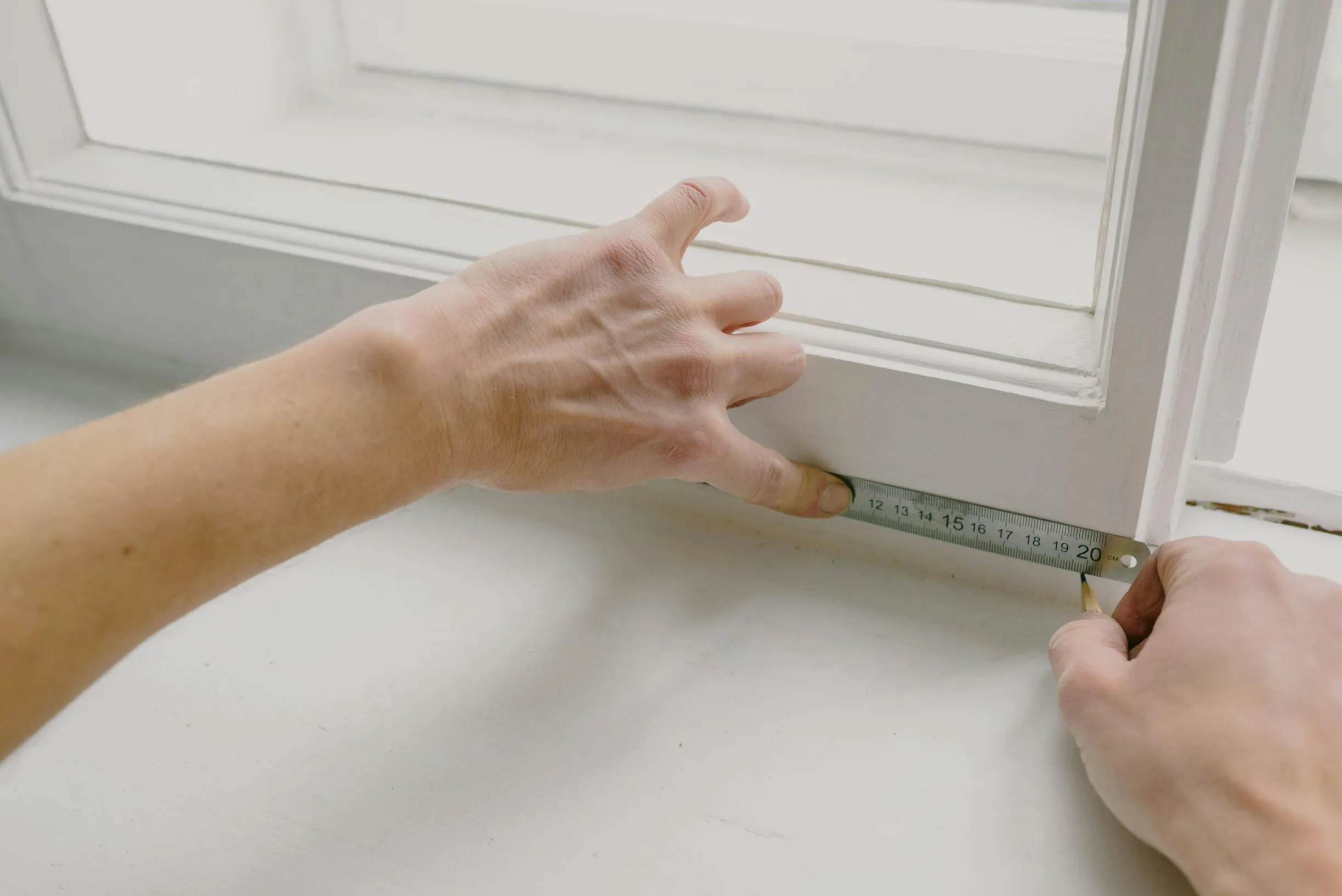
If you need to document a fault for a repair or a claim, a simple, disciplined photo sequence makes things much easier. Start with a wide shot to show the surroundings, then take mid-range images to show how parts relate to each other, and finish with close-ups from several angles to capture the fault itself. Include a clear scale and reference in the frame, such as a ruler, a labelled tag, or a familiar object, and photograph serial or part numbers legibly so size and identity are unambiguous. Before saving, optimise image clarity by checking focus, exposure and steadiness, and remove glare or loose debris where it is safe to do so. Keep the original high-resolution files rather than only compressed copies so fine defects remain visible on review.
When photos are part of a record, a few simple habits make them far more useful. Annotate images directly but sparingly using arrows, cropped insets and short captions that say what to look for, any measured values and who made the annotation. Keep the original files and keep edited copies separate, and note the device used to take each photo and the reason it was taken. Use a consistent filename and versioning system and record any edits you apply. These small steps make images easier to trace, cut down on follow-up questions and speed up cross-referencing with other log entries.

4. How to record clear video and screen captures
If you need to capture a problem so someone else can investigate, record a continuous video of the entire session from login to the point the issue appears. Video preserves transient behaviour, such as a brief cursor freeze or an intermittent dialog, that screenshots can miss.
Capture the whole screen and any individual application windows involved at a clear resolution. Make sure mouse clicks are visible and use keystroke indicators where possible. When exact key presses matter, record a short close-up of the keyboard so reviewers can confirm inputs and reproduce timing sensitive issues.
Add a concise audio narration or on-screen captions to explain each action and any anomaly you observe. A brief verbal note linking events to relevant log entries reduces ambiguity about intent and expectations and helps others reproduce the problem.
Keep the original, unedited recording and add a short, trimmed highlight clip for quick review. Name files with clear, descriptive metadata so reviewers can understand the context at a glance. Export in a widely supported format with minimal compression to preserve clarity, and avoid removing timestamps or diagnostic overlays. Retain file metadata and use consistent naming so recordings can be matched to other evidence, and store originals alongside any edited copies for auditability.

5. Record audio and describe any sounds or symptoms you notice
When recording an event, aim to capture continuous audio from before it starts, through the event, and after it finishes. Use multiple microphone positions and record each microphone’s distance from the source, its orientation, and the microphone type.
Keep both an uncompressed master for archiving and a compressed copy for easy sharing.
Log the operational context so colleagues can make sense of the clips. Note what the equipment was doing, any load or speed conditions, control inputs that occurred before the sound, nearby noise sources, and any recent maintenance or configuration changes.
Use clear, descriptive file names and a consistent labelling system so clips can be quickly correlated with the recorded conditions.
If you need to describe an odd noise so someone else can help identify it, follow these simple, practical steps. The goal is to give both perceptual detail and measurable data so patterns are clear and repeatable.
1. Describe what you hear (perceptual and measurable terms)
– Pitch or dominant frequency bands: say whether the sound is low, mid or high, and, if you can, note the approximate frequency range in Hz. For example: mostly low (below 300 Hz) or a narrow high tone (above 2 kHz).
– Rhythm or periodicity: is it continuous, a steady hum, regular pulses, or completely random?
– Intermittency: does it happen every cycle, intermittently, or only after specific actions?
– Amplitude behaviour: is the volume steady, does it spike, fade in and out, or build over time?
– Tonal versus broadband: is it a clear tone (whistle) or broadband noise (rattle, hiss)?
– Distinct artefacts: mention clicks, rattles, scraping, buzzing, electrical hums or any other noticeable traits.
2. Do a simple spectral analysis
– Use audio analysis software to generate a spectrogram or frequency spectrum. If possible, export an image and annotate it to mark prominent peaks, harmonics and repeating patterns.
– Note which frequencies line up with repeating features. That helps link the sound to likely mechanical or electrical sources.
3. Reproduce under controlled conditions
– Try to recreate the sound in a quiet environment so the event is isolated. If it only happens under certain conditions, reproduce those actions and record them.
– Capture short, focused clips that emphasise the event rather than long recordings.
4. Label and document each clip
– Give each clip a clear, descriptive name that states the action or condition (for example: “fridge_startup_close_mic”).
– Record details about microphone or recorder placement, distance and orientation, plus any background noise and the recording device used.
– Note whether the clip shows the event every cycle, intermittently, or only after a trigger.
Quick checklist to include with your submission:
– Perceptual description (pitch, rhythm, amplitude, artefacts)
– Annotated spectrogram or spectrum image
– Short, isolated audio clips that reproduce the symptom
– Clear, labelled file names and documented microphone placement and background noise
Following these steps makes it much easier for someone else to interpret the sound and suggest likely causes.

6. Log error codes, serial numbers, and firmware details
If you hit an error, it really helps to gather as much exact information as you can. Copy and paste the full error code and the exact on-screen message where possible. If you cannot copy text, take a clear photo of the display. Note serial numbers, model identifiers and hardware IDs, and record exactly where you found them, for example on a device label, in the settings menu or on the packaging. Also write down build numbers for firmware, BIOS and software, plus any build hash or checksum, and say how the software was installed or which update channel was used. Precise identifiers let others cross-reference documentation, check warranty or asset details, and reproduce or rule out faults related to a specific build.
When you’re documenting a fault, clear context makes it far easier for someone else to pick up and fix it. Try this checklist:
– Record the provenance and context for each error code: save log file names and full paths, note the relevant line numbers and any nearby entries, and capture snapshots of console output.
– Log exactly what you did and the system state at the time: list the commands you ran, configuration changes, environment details and software versions.
– Describe how to reproduce the issue step by step, and say whether the problem is intermittent or consistently reproducible.
– Spell out the expected behaviour and the observed behaviour, including examples or error messages.
These details help others validate fixes, avoid repeating unhelpful troubleshooting, and focus root cause analysis on the most relevant data.

7. Collect emails, chat transcripts, call notes and proof of purchase
If you need to keep a clear record of a conversation, save the complete email thread, including subject lines, sender and recipient addresses, and any attachments so the full context and flow remain visible. When possible, download attachments separately or save the message in a format that preserves attachments and metadata (for example .eml or .msg, or use your email client’s export tools) to retain file data and metadata.
If you cannot export messages, take full-screen screenshots that include the headers and surrounding context. Note that screenshots do not preserve attachment files or full metadata; they only capture visible information on screen. Where practical, still download attachments separately to maintain a complete record. Screenshots can help preserve visible routing information and the order of replies.
For chats, export transcripts or copy conversations with user names and system messages left intact, and keep any automated reference numbers or links so future reviewers can follow the sequence.
Keep the exact wording of error descriptions and any promises so you can quote them accurately in follow-up communications.
When logging a support call, keep your notes concise and useful. Record the agent’s name, the call reference or ticket number, the steps suggested and any commitments made. Include verbatim quotes of any critical statements, and save call recordings or voicemails when the platform allows.
Collect proof of purchase such as order confirmations, digital receipts, warranty cards and the product serial or model number. Capture PDFs or screenshots and highlight the order or payment reference for quick verification.
Keep a short annotated log that cross-references messages, call notes and purchase documents. Link each communication to the relevant receipt or serial number, flag any contradictions or unresolved promises, and attach the original files so support staff can verify claims without repeating steps.

8. Standardise file naming, organisation, and version control
Keeping files organised saves time and stress. Use a simple filename pattern that includes the minimum searchable fields, for example: caseID_component_shortDescriptor_device_v01.jpg. Use underscores or camelCase, keep names human readable, and use version increments for deliberate edits rather than overwrites so a single filename shows what the file is, where it belongs and which revision it is.
Match your folder structure to your workflow: have a root folder per case, with clearly labelled subfolders for Originals, Edits, Exports and Logs. Keep one authoritative master copy in the Originals folder and, where possible, set it to read only. Storing working files and derivatives in well labelled subfolders helps avoid accidental duplication and keeps things simple to find.
Keep a lightweight change log whenever a file is edited after capture. Record who changed the file, what was changed and why, and include the new version ID so you have an audit trail that supports rollbacks and root cause tracing. Where possible, attach searchable metadata to each piece of evidence so it is easy to find later.
For media files, preserve EXIF data for images and keep ID3 tags for audio. If you prefer not to alter the original file, use a sidecar JSON file alongside it. A simple example might look like this: {“case”:”12345″,”author”:”A.Smith”,”device”:”handheld”,”settings”:”macro”,”status”:”for analysis”}.
Automate basic checks where you can, using simple scripts or upload forms to enforce naming templates, generate checksums to detect corruption, and run routine audits to flag duplicates, missing metadata and version mismatches. These small, consistent steps make managing files simpler and give you confidence the evidence is reliable.

9. How to prove authenticity and preserve the chain of custody
To keep items verifiable and tamper-evident, record who collected each item, the device and method used, and the purpose for collection. Add initials or a digital signature so responsibility is clear from the entry itself. Create a cryptographic hash for each digital file, store each hash in a separate write-once log, and check the hash again after any transfer to reveal any alterations. Keep untouched originals in controlled storage, perform analysis only on duplicates, and attach a chain-of-custody note to every derived copy that explains how and why it was created.
For a clear, reliable audit trail, keep a simple, consistent log for every handover. Record who sent and who received the item, how it was transferred, the condition when it arrived, and a short note of any handling actions. Ask the recipient to sign, initial or otherwise acknowledge the entry so the trail stays continuous.
Take a clear photograph of any physical items showing a visible identifier and a scale for size. Where possible, capture the device metadata too, for example the camera model and firmware or other relevant settings.
Make a note of environmental or situational details that could affect the item, such as location, packaging and who was present. These details add tamper-evident context.
Keeping provenance records, unchangeable fingerprints such as cryptographic hashes, and detailed handover logs together makes it easier for independent reviewers to reconstruct handling and detect any changes.
10. Prepare a clear log to support a warranty claim
If you need to prepare a log for a warranty claim, keeping things clear and organised will make the process much easier. Follow these straightforward steps and keep copies of everything.
1. Proof of purchase and ownership
– Attach the original receipt if you have it, showing purchaser name and order reference. If the receipt is unavailable, use a bank or payment record instead.
– Redact any sensitive numbers, such as full card numbers, but keep enough detail for the transaction to be verified.
2. Photograph and transcribe unique identifiers
– Take clear, well-lit photos of serial numbers, model or type plates, and any asset tags.
– Also provide a typed transcription of each identifier so numbers cannot be misread from photos.
3. Create a concise, numbered incident log
– Make a separate, numbered entry for each fault occurrence. For each entry record: exact symptoms, the actions taken, any visible error messages, the condition of the device before and after interventions, and who performed each step.
– Link each log entry to the matching photos, audio or diagnostic files and note the file names so you can find them quickly.
Keeping this information organised and easy to follow will help whoever is assessing the claim understand exactly what happened and speed up the process.
If you need to submit evidence for a fault or claim, keep things simple and easy to follow so whoever reviews it can verify everything quickly. Here is a straightforward checklist to follow:
– Gather original diagnostic outputs and test evidence. This includes raw log files, exported system reports, screenshots and measurement readings.
– For every test, describe the method used and list the instruments and settings. That helps reviewers understand and interpret the results.
– Prepare a one-page claim summary that states the fault, the resolution you are seeking, and points to the relevant incident entries.
– Produce an index of evidence. For each attachment give the filename, a short description and a cross reference to the incident log.
– Keep all files consistently named and stored in a single accessible folder so reviewers can locate and verify items quickly.
A quick tip: use clear, descriptive filenames and a simple folder structure. I know this paperwork can feel fussy, but organising it like this makes the whole process much smoother for everyone.
Clear, consistent evidence makes it much easier to build a verifiable timeline that helps technicians reproduce faults and supports warranty claims. Keep a simple record of the context and what you saw, notes on when the issue happened, and any photos, audio clips, error codes or messages. Also jot down who you spoke to and who handled the item. Those details preserve the facts and reduce the need for further follow-up.
Treat the headings as a practical checklist. Start by defining the scope and logging the environment state, then capture annotated photos, screen recordings and cryptographic hashes so every attachment links to a numbered incident entry. Use a single template and one enforceable naming rule to build an indexed, auditable folder. That simple structure makes diagnosis quicker, claims clearer and handovers far more reliable.